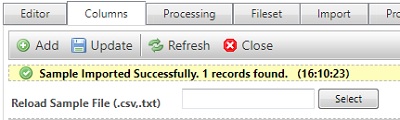
The columns tab allows you to manage your template's column attributes. The list of column headings is automatically generated from the sample file you provide when you create the template. You can add further columns or reorder columns using the buttons in the taskbar. If multiple changes need to be made, it may be easier to reload a sample file.
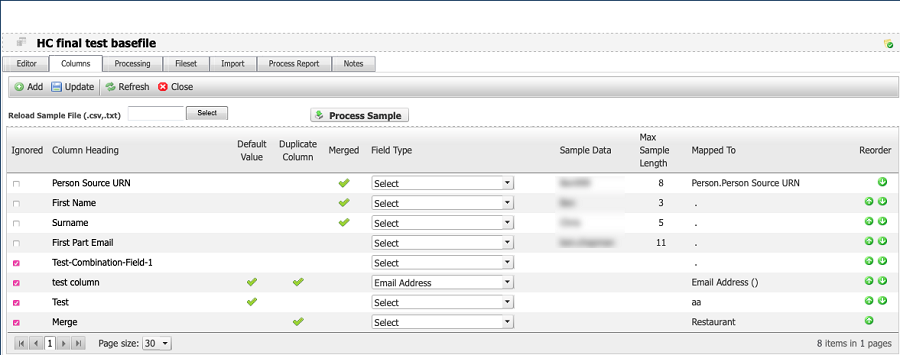
Column attributes
- Ignored: Selecting this option excludes that column from the import, rendering all other attribute settings redundant.
While there is little difference between an ignored column and not having that column in the template, ignored columns are still counted for the purposes of matching template columns to columns in an input file, so it is important to include unused columns and ignore them if your file doesn’t provide column headers.
-
Field types: Setting the attributes for each individual column in a template is a time-consuming process. To speed that up, the system offers a number of predefined field types that can be used to quickly set the attributes of a column to fit common uses. To use them:
-
Select the desired preset from the Field type drop-down list next to each listed column.
-
Click the update button at the top of the tab to replace the attributes of each column with those from the preset.
Some columns may not have presets defined for them. If this is the case, you can manually define the attributes.
-
Add a column
The sample file used to create the template automatically generates the columns seen in the columns list. If you need to add a column to a template:
-
Click the add button in the taskbar to open the add columns window.
-
Provide the column name and data type, e.g. integer.
-
Click create to close the add columns window.
-
Click update to refresh your column list. It may be necessary to change page to see the newly added column.
-
Update column attributes as required.
If you need to add multiple columns, it may be easier to reload a sample file.
Reorder columns
Columns are created in the order defined by your sample file. If the data is being received in a different order, you can reorder your columns using the arrows to the right of the table.
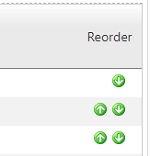
Use the up arrow to move a column up one space in the order.
Use the down arrow to move a column down one space in the order.
If multiple columns need to be moved multiple spaces, it may be easier to reload a sample file.
Reload a sample file
If you need to make multiple changes to your template, you can load a new sample file. The data import template will read the new sample file with all the existing settings, i.e. delimiter, encoding, etc.
-
Click in the text box or click the select button next to the reload sample file prompt to open a search window.

-
Locate the csv or txt file that contains your new sample data and click the open button.
-
Click the process sample button. The columns tab will momentarily clear then Unify will display a confirmation that the new data was successfully imported.